AI-Powered Meeting Assistant

Never Get Caught Off Guard in a Client Meeting Again

AI-powered meeting assistant that listens to your client's questions and generates perfect answers in real-time — invisible to screen sharing.

Get MeetAssist AI Pro
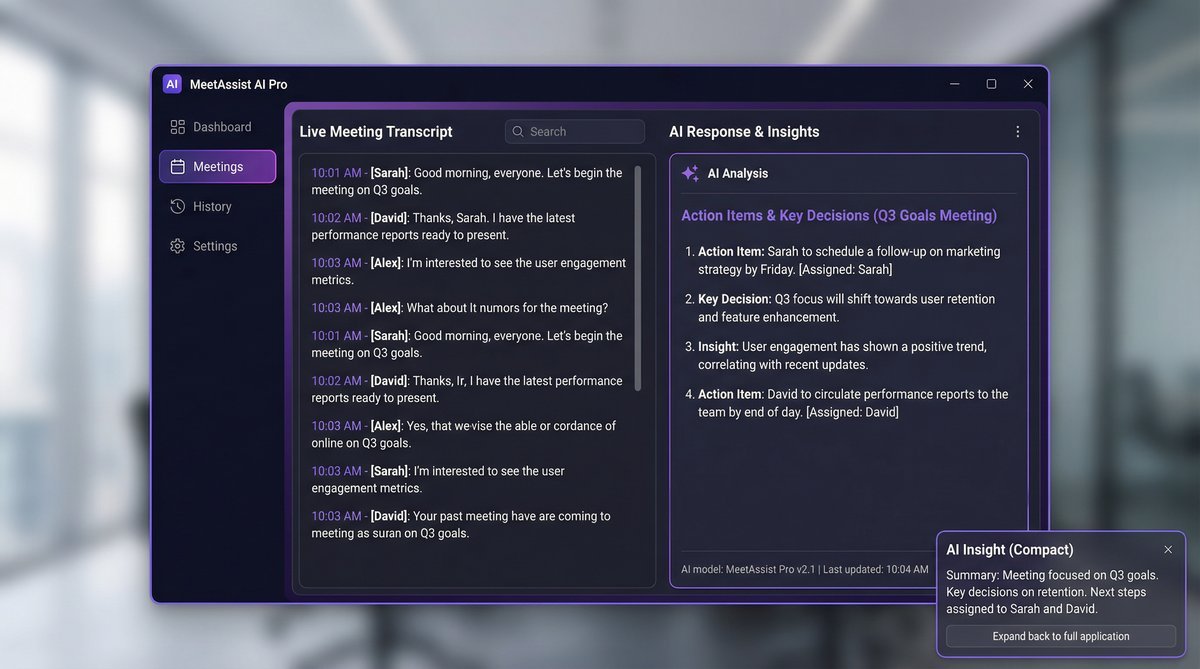
MeetAssist AI Pro — Live meeting transcript with AI-generated responses

How It Works

Four simple steps to never be unprepared in a meeting again

1
🎥

Select Your Meeting Source

Pick the Zoom, Google Meet, or Teams window. MeetAssist captures audio directly from your meeting app.

2
🎧

AI Listens in Real-Time

Deepgram transcribes your client's questions as they speak. Every word captured with precision.

3

Get Instant Answers

AI generates contextual responses based on your CV, instructions, and the conversation. Answers stream word-by-word.

4
🚫

Stay Invisible

The floating mini-mode is completely hidden from screen sharing. Only you can see the answers.

Built for Professionals

Everything you need to ace every meeting, interview, and sales call

🎤

Source Audio Capture

Only captures audio from your meeting window — not background noise, not your microphone. Clean, focused transcription.

🤖

Triple AI Support

Works with Claude, Gemini, and ChatGPT. Choose your preferred AI or switch between them mid-meeting. Bring your own API key.

🛡

Screen Share Safe

Both the main app and floating mini-mode use content protection — completely invisible when you share your screen on any platform.

📋

Meeting History

Full transcript export and meeting logs. Review past meetings, export to text files, and never lose important conversation details.

🔒

Device Locked

Your license is secured to your device with hardware fingerprinting. Protected against unauthorized sharing.

Keyboard Shortcuts

Control everything without leaving your meeting. Global shortcuts for mini-mode, start/stop, and clipboard — even when the app is in the background.
Take a look inside

The full MeetAssist AI Pro experience

Every screen, every setting, every shortcut — designed so you can walk into any meeting prepared.

Main
Configure
Help
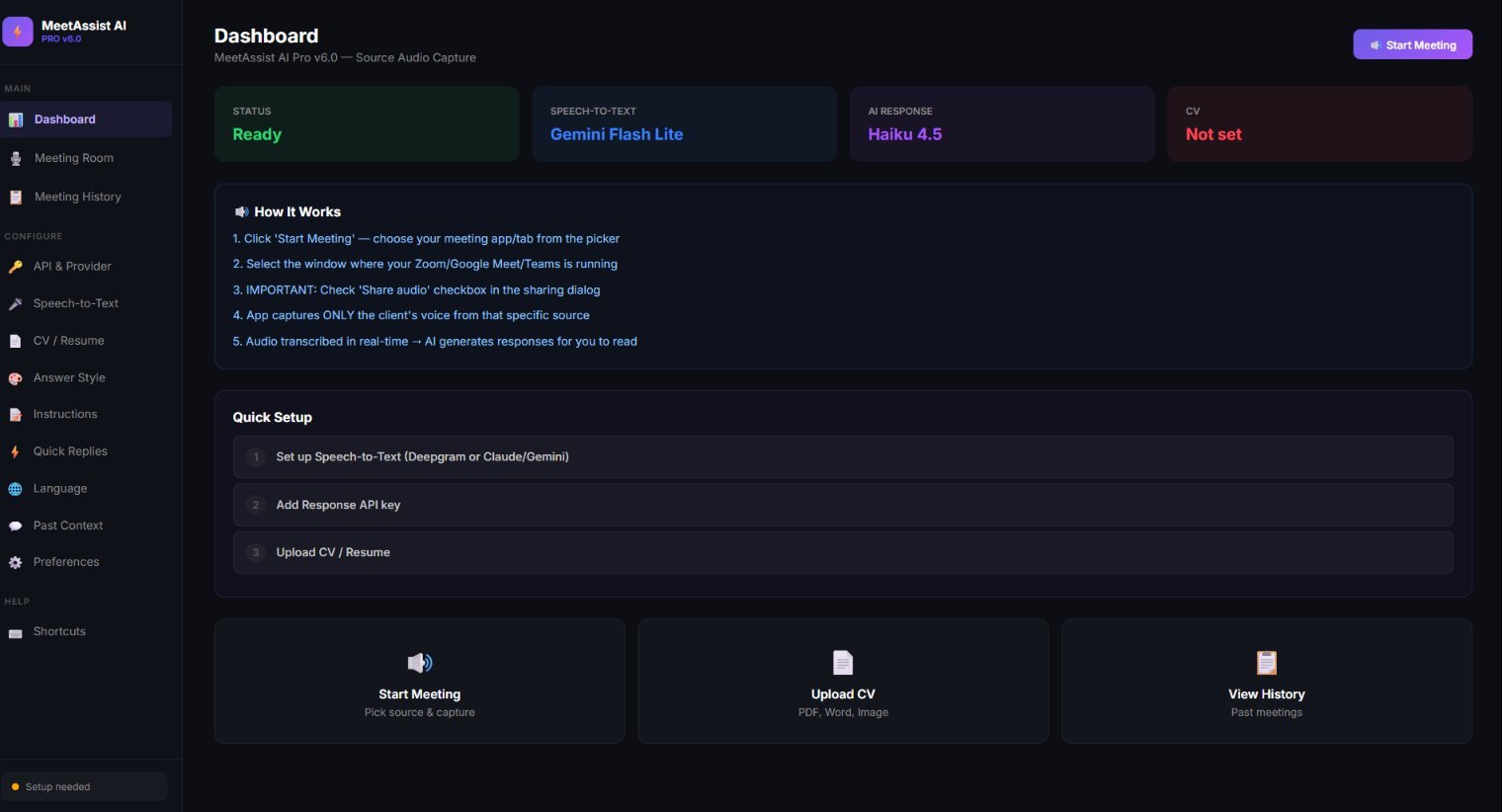
Main · Dashboard

Your command center for every meeting

The dashboard shows your live status at a glance — speech-to-text engine, active AI model, CV state, and a clear "How It Works" walkthrough. Quick Setup checklist guides you through Speech-to-Text setup, API key entry, and CV upload. Three tap-to-launch tiles let you start a meeting, upload a CV, or review past sessions.

  • Live status cards: Speech-to-Text, AI Response model, CV state
  • Step-by-step Quick Setup checklist for first-time users
  • One-click launch tiles for the most common actions
MeetAssist AI Pro Dashboard
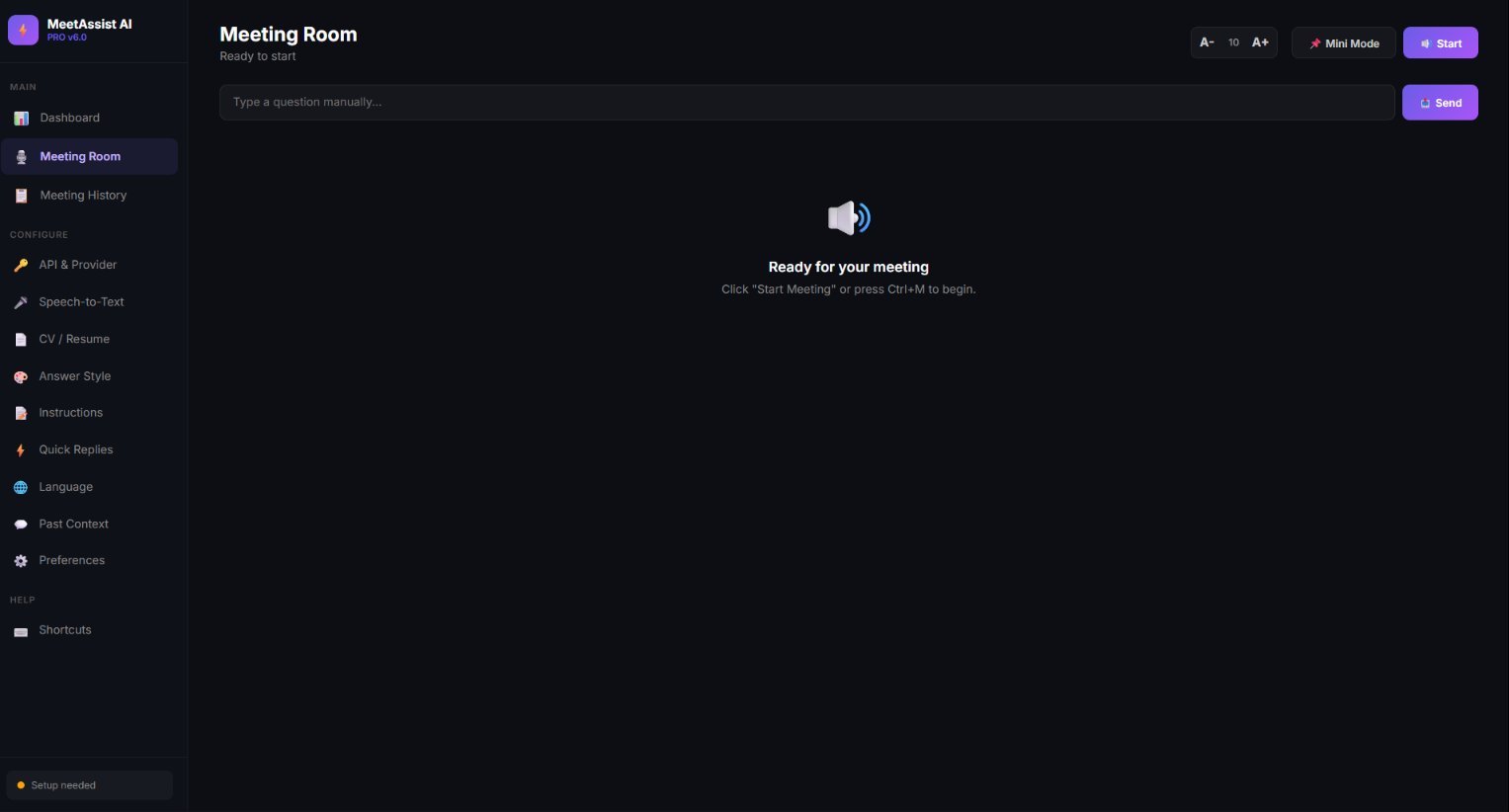
Main · Meeting Room

Ready for your meeting in one click

The Meeting Room is where the magic happens. Click "Start" or hit Ctrl+M, pick the meeting window you want to capture, and the app listens silently in the background. Type a question manually any time, switch to "Mini Mode" for a tiny floating overlay that stays out of the way during screen shares.

  • Source-specific audio capture — only listens to the meeting tab
  • Mini Mode floating overlay invisible during screen sharing
  • Adjustable answer font size for easy reading mid-call
  • Manual question input alongside live transcription
Meeting Room interface
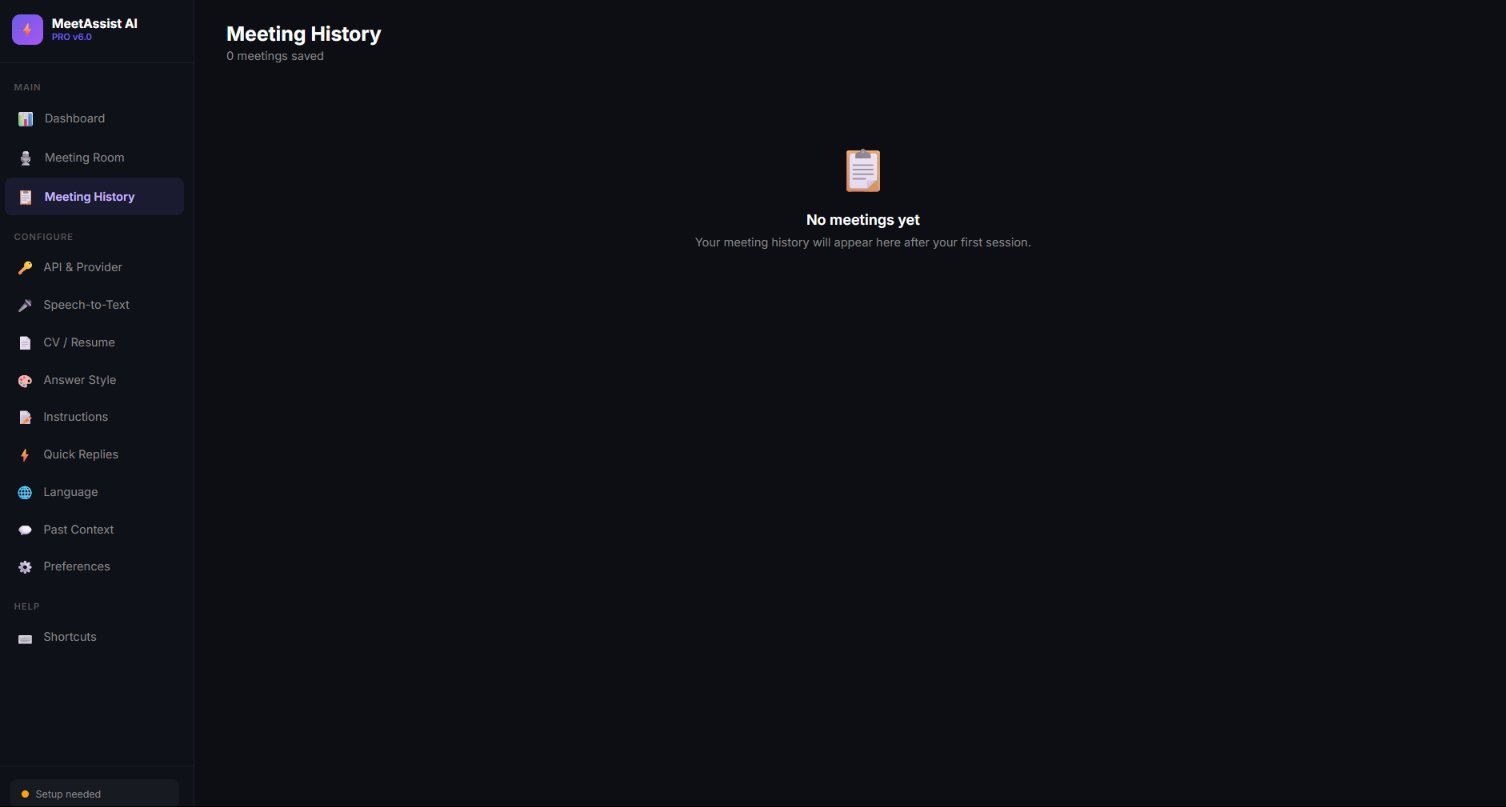
Main · Meeting History

Every meeting saved, searchable, exportable

Never lose a transcript again. Every session is saved locally with full transcript, AI answers, timestamps, and notes. Search through past meetings, export to text or markdown for your CRM, and review what worked so you can replay your best moments.

  • Full transcript and AI answer log for every meeting
  • Local storage — your conversations stay on your machine
  • Export individual sessions for records and follow-ups
Meeting History view
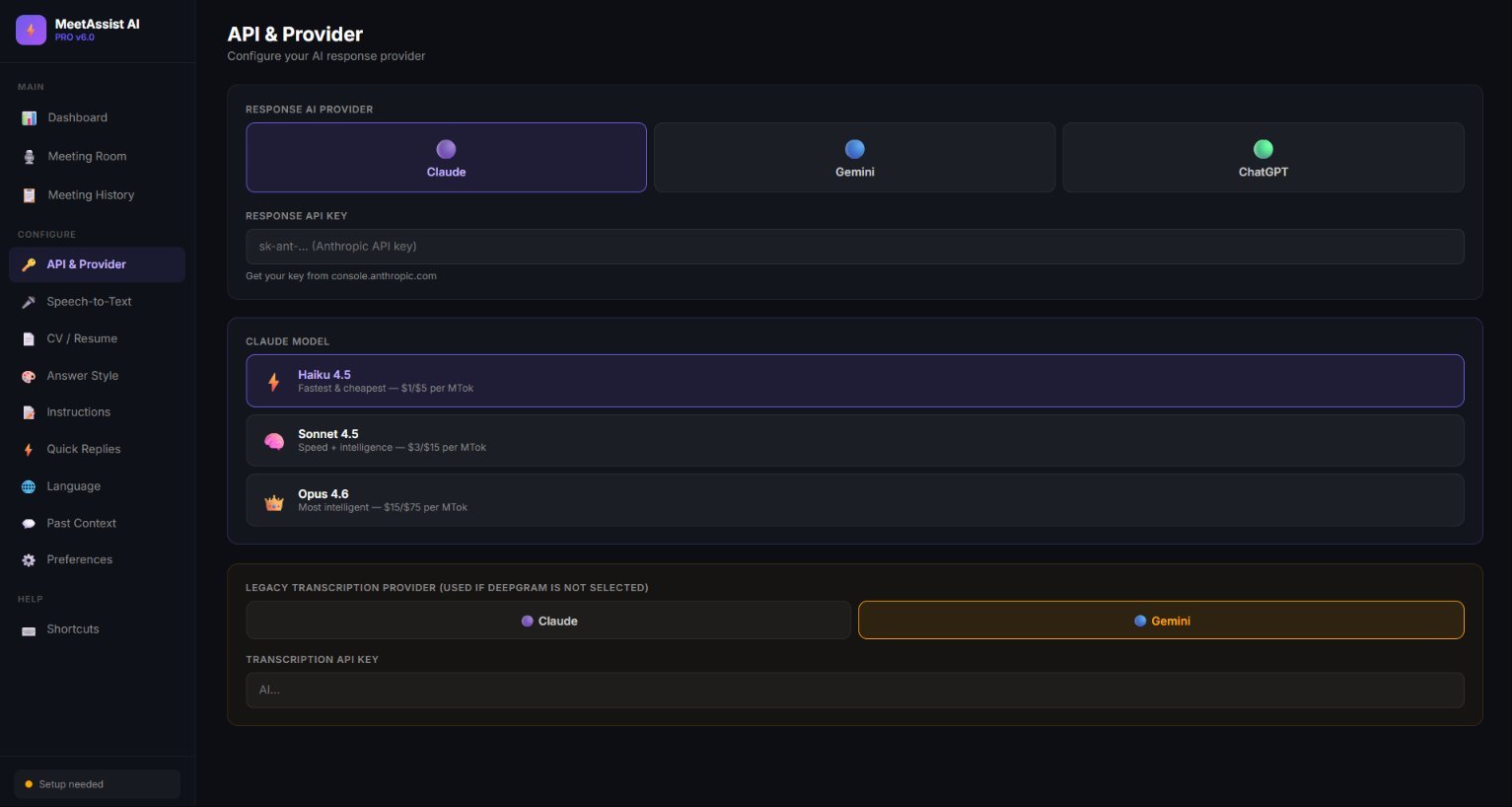
Configure · AI & API

Bring your own AI — pick the model that fits

Plug in your own API key from Anthropic, Google, or OpenAI. Switch between Claude (Haiku 4.5, Sonnet 4.5, Opus 4.6), Gemini, or ChatGPT depending on your speed/cost/quality needs. Set a separate provider for transcription if you skip Deepgram. Full control, no vendor lock-in.

  • Three response providers: Claude, Gemini, ChatGPT
  • Choose specific Claude tier — Haiku for speed, Opus for depth
  • Pricing shown per model so you know what each call costs
  • Separate transcription provider for legacy mode
API and Provider settings
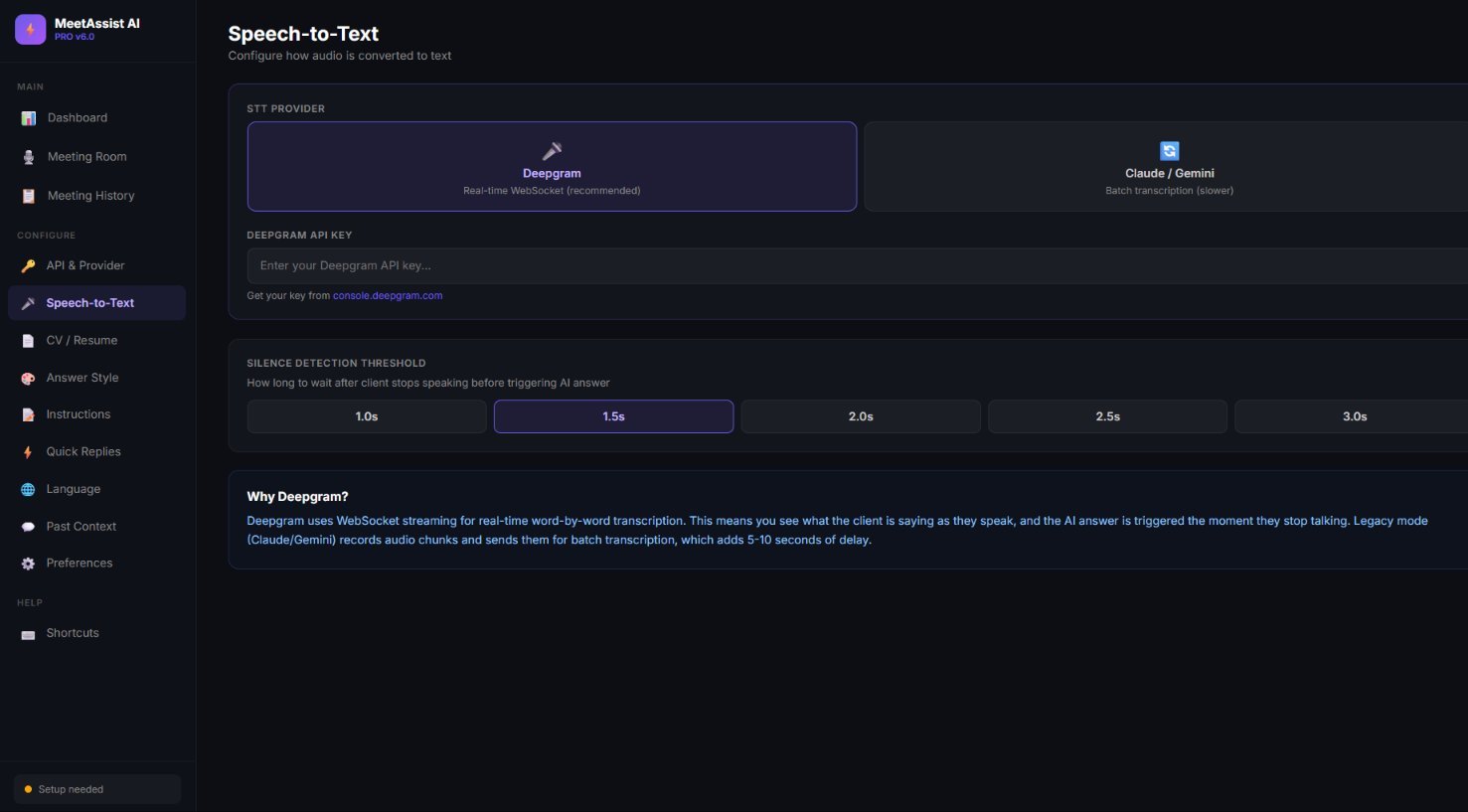
Configure · Speech-to-Text

Real-time transcription powered by Deepgram

Deepgram's WebSocket streaming gives you word-by-word transcription with no perceptible delay — answers appear within milliseconds of the client finishing their sentence. Set the silence threshold (1.0s to 3.0s) to match your speaking pace, or fall back to Claude/Gemini batch mode if needed.

  • Deepgram WebSocket streaming for real-time word-by-word transcription
  • Adjustable silence detection: 1.0s, 1.5s, 2.0s, 2.5s, 3.0s
  • Legacy batch mode (Claude/Gemini) as fallback option
Speech to Text setup
Configure · CV / Resume

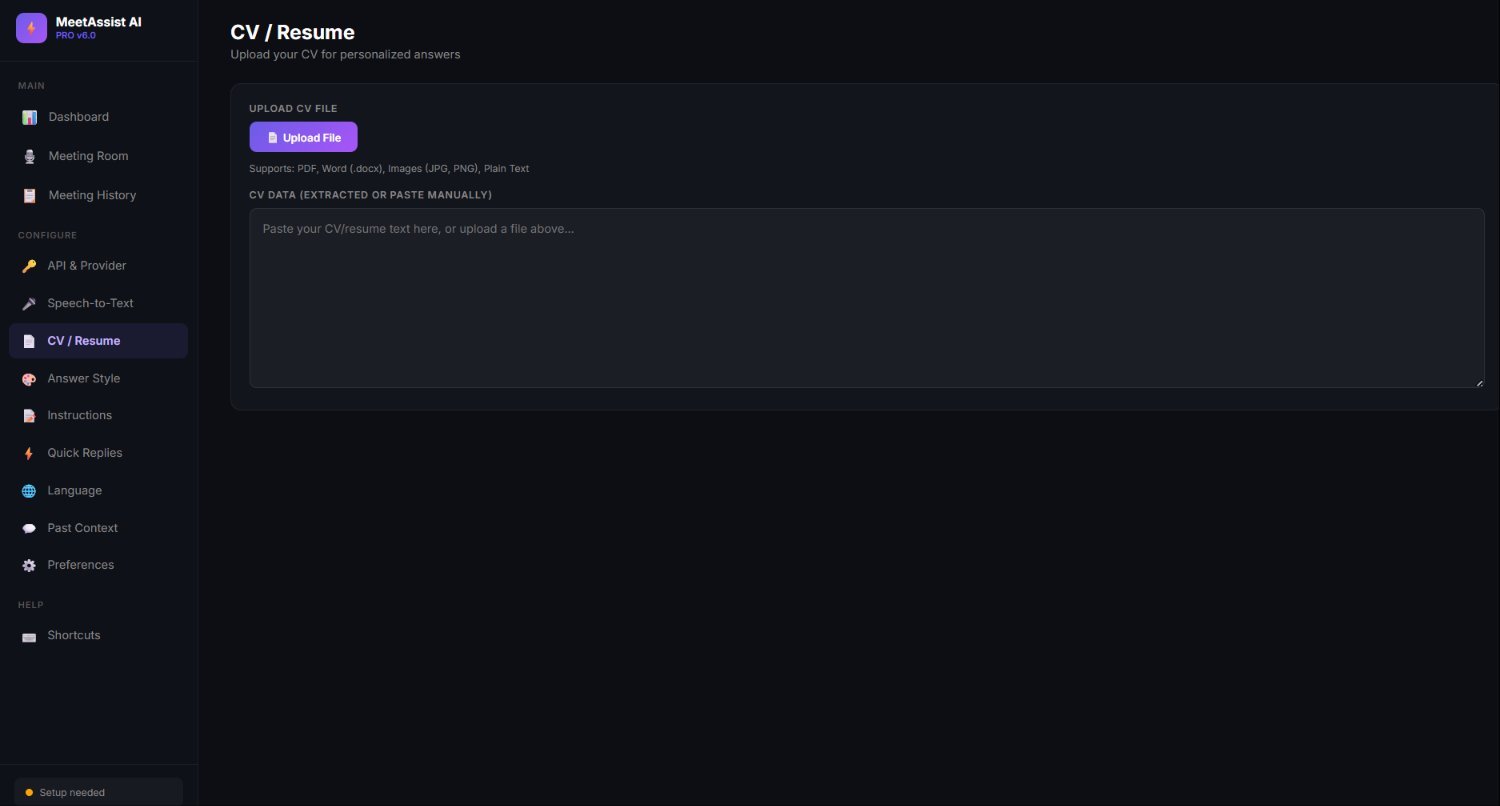
Upload your CV — answers tailored to your experience

Drop in your resume as PDF, Word, image, or plain text. The AI uses it to craft answers that reference your actual experience, projects, and skills. Perfect for interviews, sales calls, or client meetings where you need to sound credible and on-brand.

  • Supports PDF, Word (.docx), images (JPG, PNG), and plain text
  • Auto-extracts and uses CV content in every AI answer
  • Paste manually if you prefer — no upload required
CV Resume upload section
Configure · Answer Style

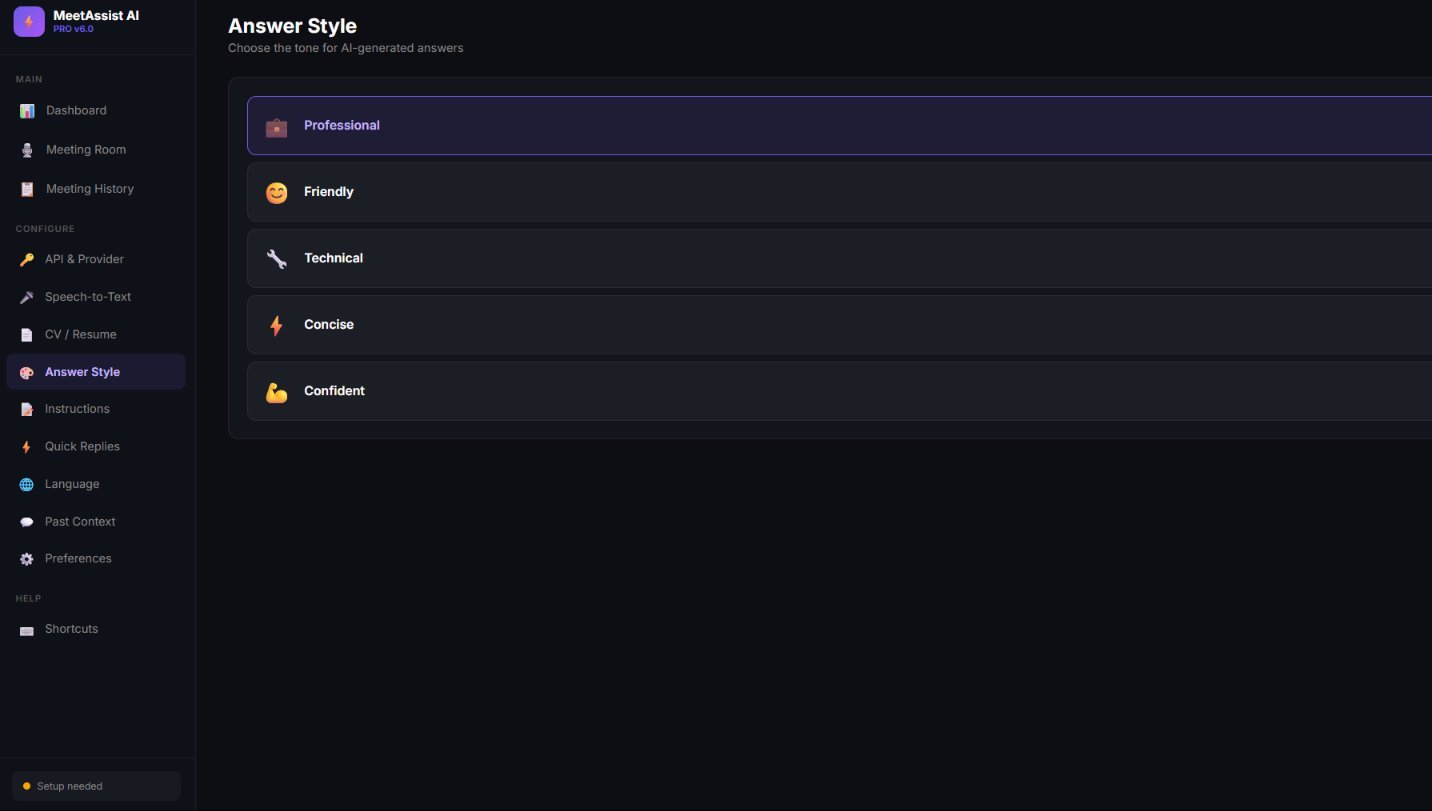
Pick the tone that matches the room

Switch between Professional, Friendly, Technical, Concise, or Confident. Each style reshapes how the AI delivers answers — formal pitches, warm sales calls, deep-dive interviews — without you having to spell it out every time.

  • Five tonal presets: Professional, Friendly, Technical, Concise, Confident
  • One click switch — applies instantly to next answer
  • Pair with Custom Instructions for fine-tuned voice
Answer Style options
Configure · Custom Instructions

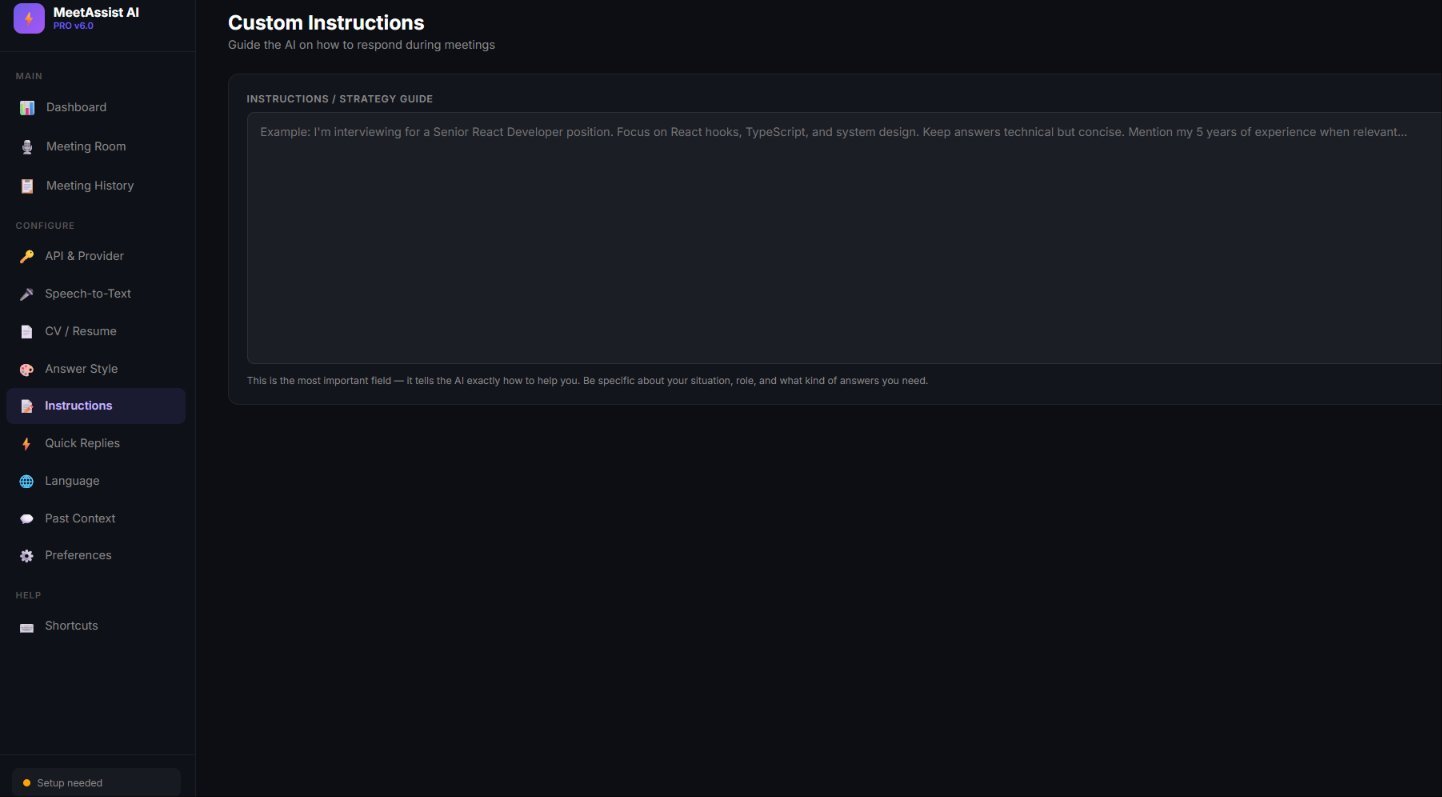
Tell the AI exactly how to help you

The most important field in the app. Spell out your situation: the role you're interviewing for, the product you're selling, the client you're meeting, the angle you want to push. The AI uses this on every answer — so the more context you give, the sharper the responses.

  • Free-form strategy guide that conditions every AI response
  • Mention years of experience, key skills, talking points
  • Pin the negotiation angle, demo flow, or interview persona
Custom Instructions field
Configure · Quick Replies

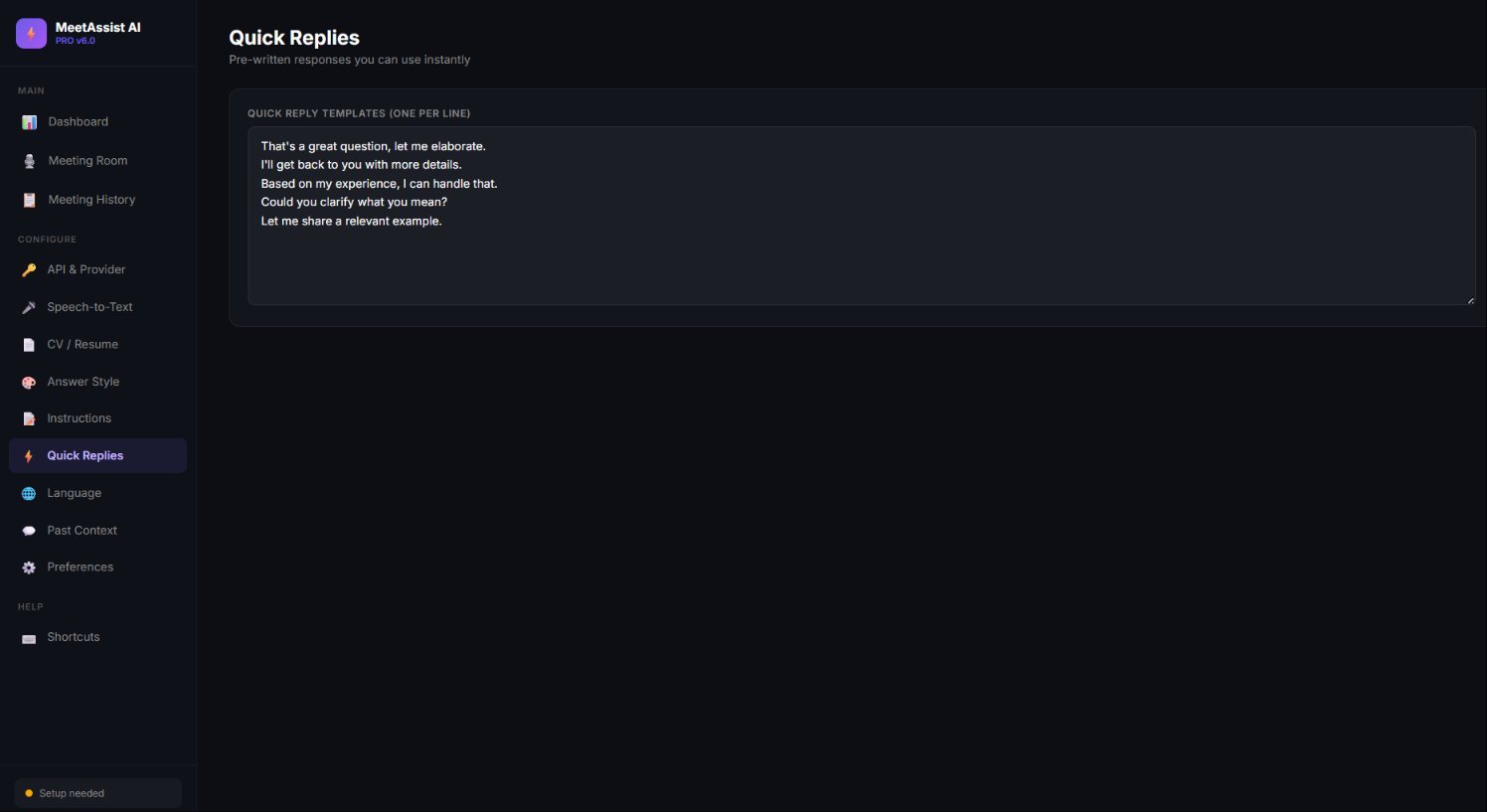
Pre-written responses, one click away

Save the lines you reach for over and over — "Let me get back to you with details", "Great question, let me elaborate", "Based on my experience…". One per line, instantly available during a meeting when you need to fill a pause without losing momentum.

  • Unlimited templates, one per line
  • Available on demand mid-meeting
  • Perfect for buying time while the AI generates a deeper answer
Quick Replies templates
Configure · Language

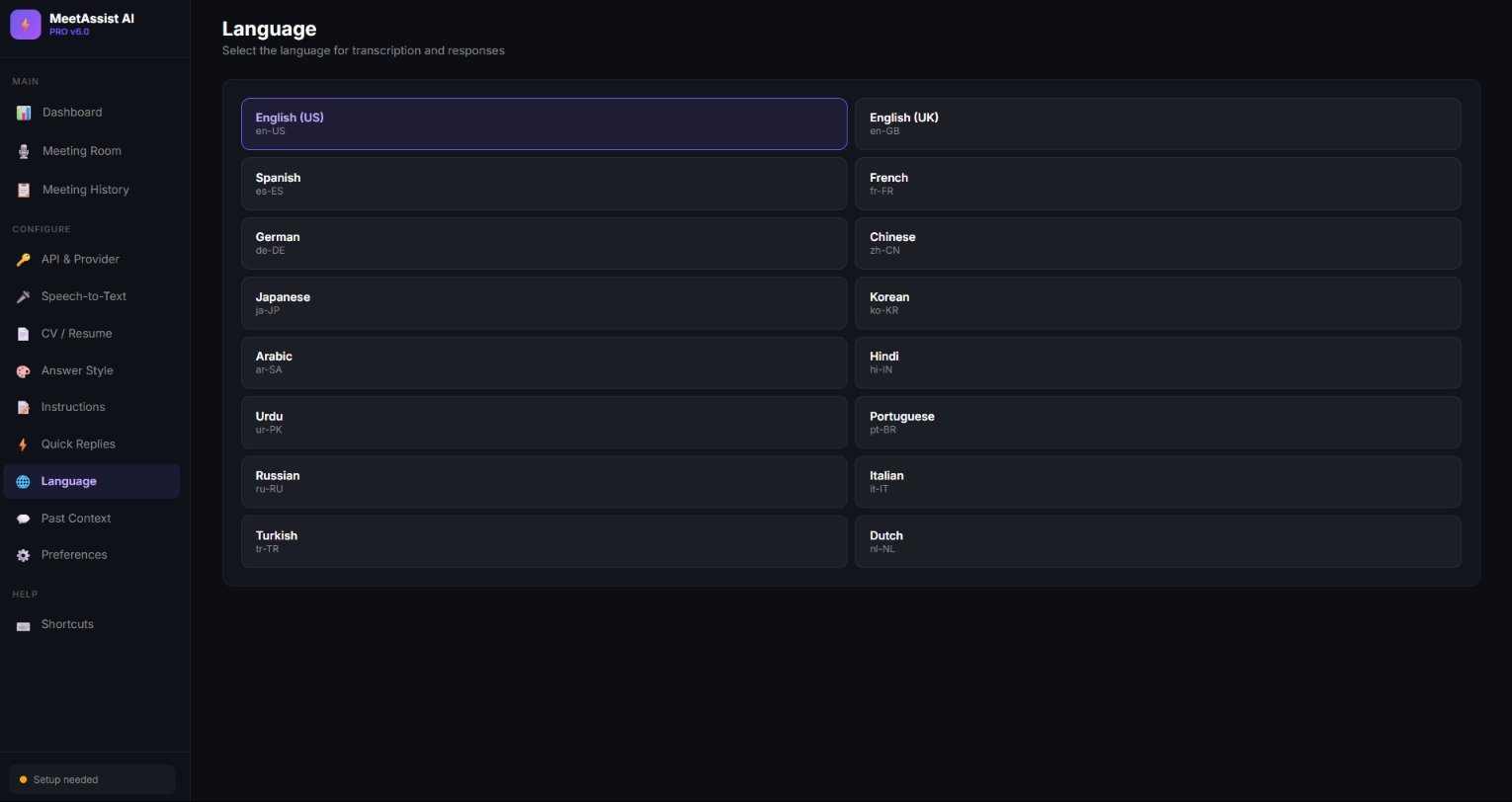
14 languages for transcription and responses

English (US/UK), Spanish, French, German, Chinese, Japanese, Korean, Arabic, Hindi, Urdu, Portuguese, Russian, Italian, Turkish, Dutch — pick the language and the AI transcribes and replies in it natively. Built for global sales teams, multilingual interviews, and cross-border calls.

  • 14 languages with proper locale codes (en-US, ur-PK, zh-CN, etc.)
  • Native transcription accuracy — not auto-translation
  • AI replies in the same language by default
Language selection
Configure · Past Context

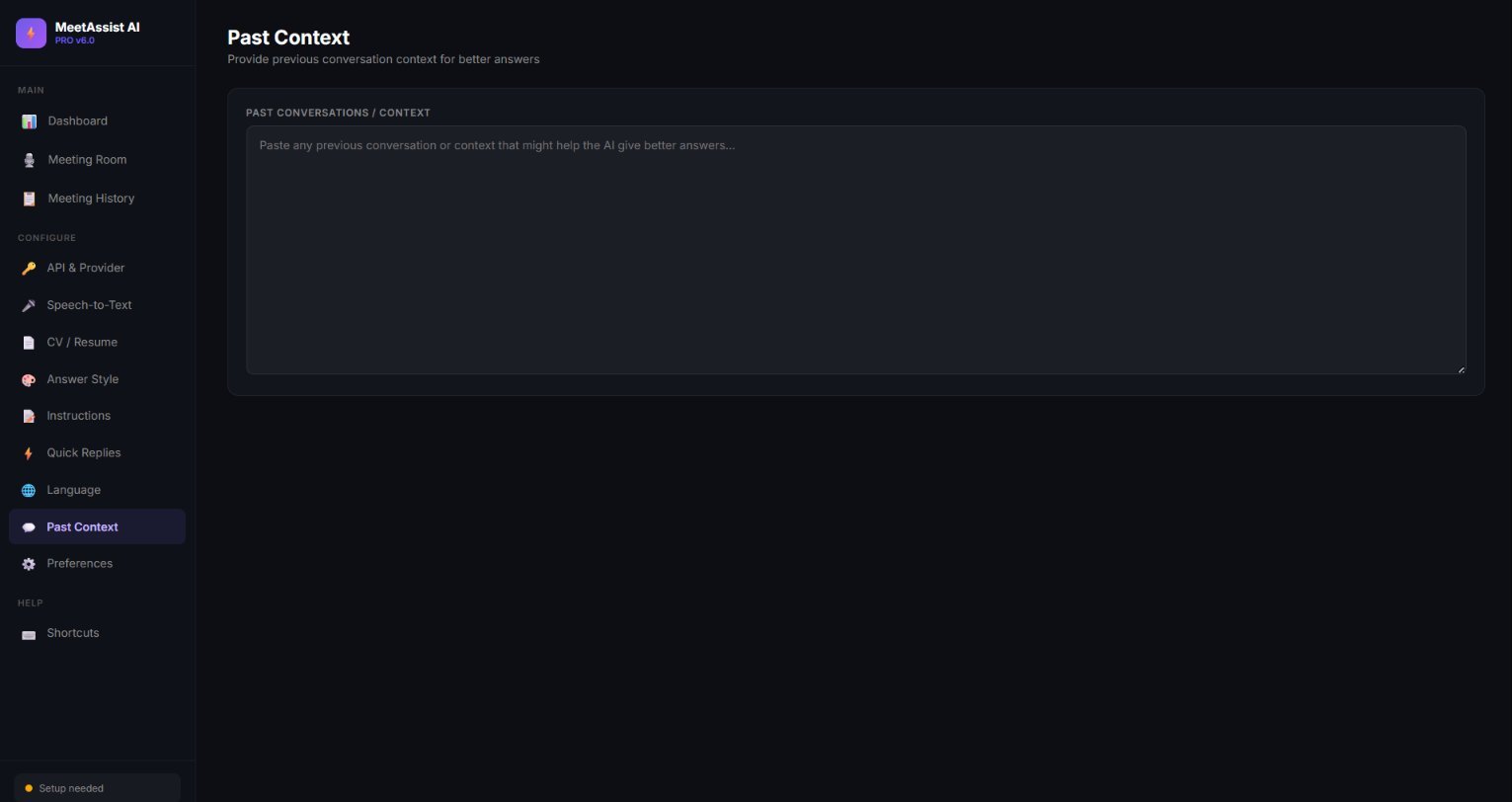
Train the AI on past conversations with this client

Paste in previous chat history, prior meeting notes, email threads — anything that gives the AI background on the person you're talking to. Suddenly the AI references things that were said three meetings ago, and the client feels truly heard.

  • Free-form paste area — no formatting required
  • AI references this context in every answer
  • Game-changer for follow-up calls and ongoing client relationships
Past Context conversation history
Configure · Preferences

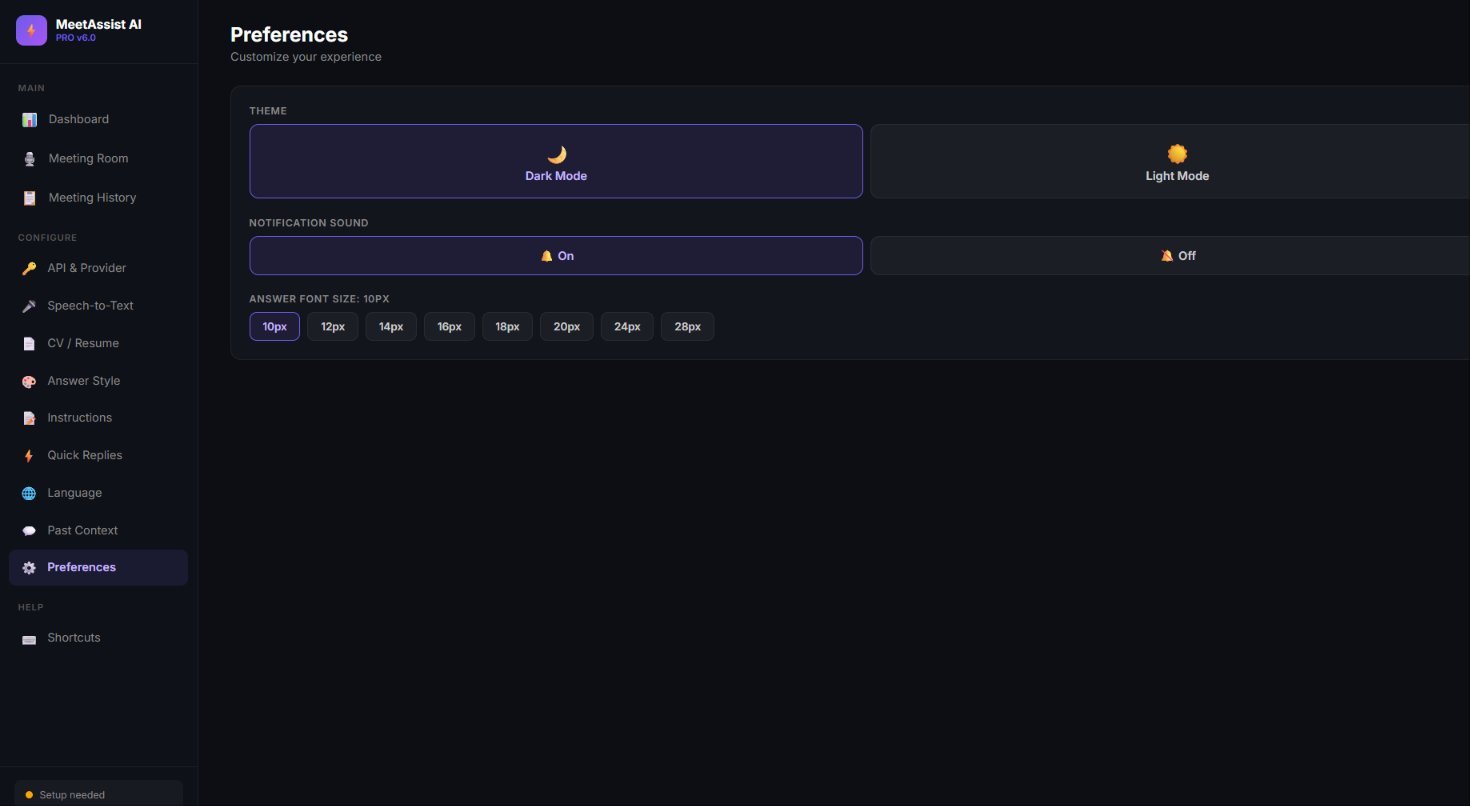
Make it yours — theme, sound, font size

Dark Mode for late-night calls, Light Mode for daytime focus. Notification sound on or off. Font sizes from 10px to 28px so the answers are readable on any monitor — including secondary screens you can glance at without breaking eye contact.

  • Dark / Light theme toggle
  • Notification sound on / off
  • Eight font-size presets — 10px through 28px
Preferences settings
Help · Keyboard Shortcuts

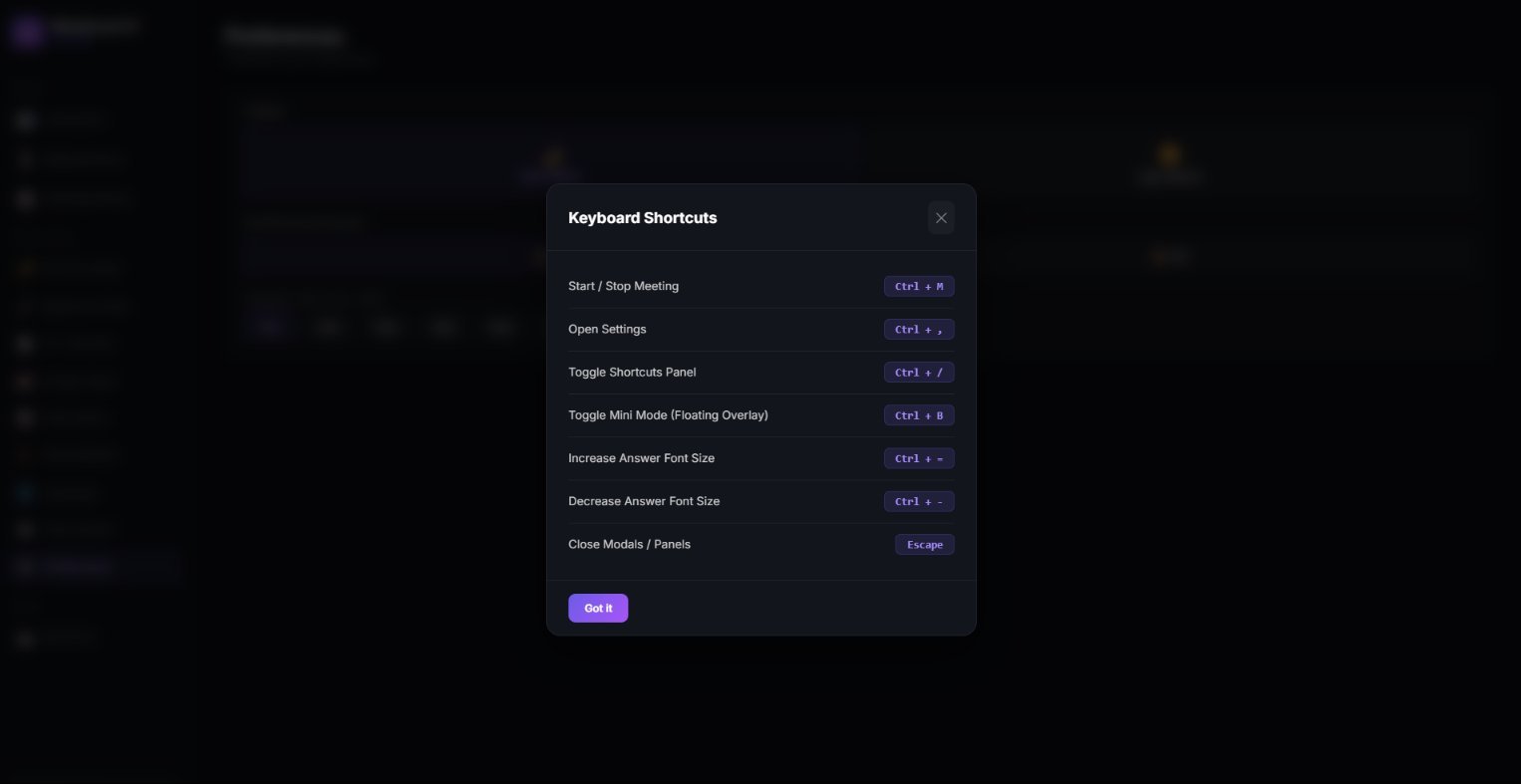
Hands on the keyboard, eyes on the client

Every action mapped to a keystroke so you never have to break flow during a meeting. Start/stop instantly with Ctrl+M, pop into Mini Mode with Ctrl+B, scale the answer font on the fly with Ctrl + plus/minus.

  • Ctrl+M — Start / stop meeting
  • Ctrl+B — Toggle Mini Mode floating overlay
  • Ctrl+/ — Toggle shortcuts panel
  • Ctrl++ / Ctrl+ — Adjust answer font size
  • Esc — Close any open modal or panel
Keyboard Shortcuts panel

14 fully-built configuration panels. Real-time transcription. Three AI providers. One-time payment.

Get MeetAssist AI Pro — £29

Simple, One-Time Pricing

No subscriptions. No monthly fees. Pay once, use forever.

Lifetime License

MeetAssist AI Pro

£29
One-time payment — not a subscription
  • Lifetime license — no recurring fees
  • All AI providers (Claude, Gemini, ChatGPT)
  • Unlimited meetings
  • Free updates
  • Screen share protection
  • Floating mini-mode
  • Meeting history & export
  • CV/resume upload for personalized answers
1 Choose your payment method
2 Make your payment

Click below to pay £29 via PayPal. The amount will be auto-selected.

Pay £29 with PayPal

After paying, take a screenshot of the PayPal confirmation and upload it in the form below.

3 Submit your payment details

Your license key and download link will be sent here

JPG, PNG, or any image format. Max 5 MB.

After we verify your payment, you will receive your license key, login credentials, and download link via email within 24 hours.

Frequently Asked Questions

MeetAssist AI Pro supports Claude (Anthropic), Gemini (Google), and ChatGPT (OpenAI). You bring your own API key for whichever provider you prefer. You can switch between them at any time, even mid-meeting.
Yes. Both the main window and the floating mini-mode use Electron's Content Protection API, which makes them completely invisible when you share your screen on Zoom, Google Meet, Teams, or any other platform. Only you can see the answers on your monitor.
Each license works on 1 device. Your license is locked to your computer using hardware fingerprinting. If you need to move to a new computer, you can transfer your license once every 30 days from within the app settings.
No. MeetAssist AI Pro is a one-time purchase with lifetime access. You pay once and use it forever. All future updates are included at no extra cost.
MeetAssist AI Pro works with Zoom, Google Meet, Microsoft Teams, Skype, Discord, WhatsApp Desktop, Slack — any platform you can run on your Windows computer. It captures audio from the meeting window directly.
All your data stays on your computer. The app does not send your conversations, CV, or API keys to our servers. The only server communication is license verification. Your meeting transcripts, AI responses, and personal documents never leave your machine.
Need help? Chat with us